How to create a floor plan photo report
A floor plan photo report is a PDF where every image stays tied to its waypoint. You do not make it by dumping a camera roll into a layout. You make it by documenting the site first, then formatting and exporting the trail.
See a synthetic example at the Oak Ridge sample report. Capture method: how to pin photos to a floor plan.

From walk to deliverable
- Document on the plan first. Overviews, close-ups, optional 360 JPEGs, and notes at each pin. If the map is weak, the PDF will be weak.
- Walk the drawing before you export. Missing waypoints are obvious. Two photos of the same wall and nothing in the mechanical room is a documentation problem, not a layout problem.
- Annotate stills and add captions. Markup is for standard photos. 360 stills open in the look-around viewer; they will not take canvas annotations. Captions should add condition, not repeat the room name.
- Format with presets if you have them. Signed-in accounts can reuse report presets so every job does not start from a blank layout. Local mode still exports a location-indexed PDF.
- Choose what the PDF contains. Cloud projects with more than one capture date: one visit, or all dates historical (grouped by date at each waypoint, oldest→newest or newest→oldest). Free/local: the photos in the project, without date grouping. 360 photos appear as a flat preview labeled Photo N · 360°—not an interactive sphere inside the PDF.
- Export, then deliver. Send the PDF, download a project ZIP, or share a cloud link. People who need to look around a 360 open the project in the browser.
Historical PDFs are a Cloud feature on multi-date projects. They are not a before/after comparison slider and they are not available on shared links as a date filter.
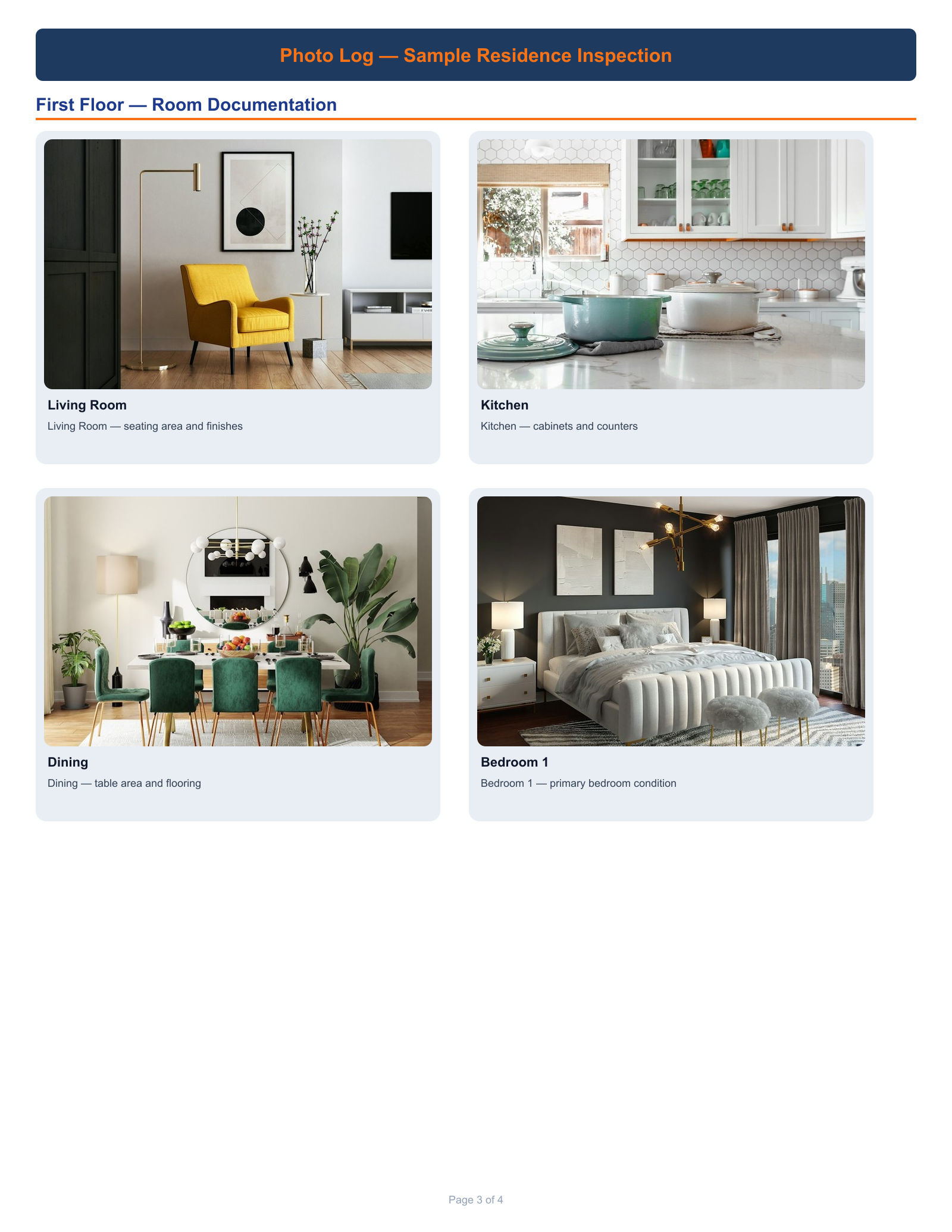
What belongs in the report
- The plan as the index (floor, roof, or site).
- Overview + detail stills at the pin that matches where they were taken.
- 360 stills when you shot them—labeled, not spun, in the PDF.
- A short note when the image is not self-explanatory.
Common mistakes
- Exporting before walking the plan.
- Including every frame. Two clear photos beat twenty of the same wall.
- Leaving photos in a general folder so the PDF has no location trail.
- Expecting the PDF to be a virtual walkthrough. It is a document.
Frequently asked questions
Is this the same as photo report software?
The product page is photo report software. This page is the how-to: how the report is built from pins.
Do 360 photos work in the report?
Yes, as labeled stills. Interactive viewing is in the web app. See 360 photo documentation.